


A mistaken tap can leave you looking for an undo control that is not part of the reporting flow. You may have meant to remove a character chat or message, not flag it for review. Those are separate actions, and choosing the right one matters if you want to change what appears in your account.
This guide helps you identify the item you actually want to change and choose a suitable control. A report concerns content or an account, while a chat and its messages are parts of your conversation. Keeping those separate can help you avoid broader changes when a small one will do.
Key Takeaways
- A report and the reported content are separate items.
- A chat can be removed from your chat list.
- You can remove an individual message on mobile.
- Account deletion is a permanent, account-wide action.
- Privacy settings do not change a report’s status.
If you only want the conversation gone, leave account-wide controls alone.
How to Remove the Report on C.AI After Submission
You cannot withdraw or edit a report after submitting it through Character.AI’s reporting controls. The platform does not provide a report-removal button or edit option after submission, so check the target and reason before you send one. After submission, the report is no longer a setting you can toggle.
Moderation means the review of reported content or accounts for possible rule violations. A report is a request for moderation, not a control that changes the status of the character, message, or account you flagged. The report and its subject remain separate items in the interface.
Character.AI has no control to withdraw or edit a report after you submit it.
The lack of an undo option means you should treat the final submission step as deliberate. A report asks the platform to review the reported content or account; it does not function like a saved preference you can switch back later.
If you selected the wrong item, avoid trying to fix the situation by sending another report. A second submission does not alter the first one, and it may flag a different character or user instead. First identify whether you meant to change the report or the conversation item itself.
Be precise about the reason when reporting something in the future. Include details that explain what you believe violates the Terms, such as the specific conduct or content involved, rather than unrelated context. Do not submit another report as a substitute for editing the first one.
What Does a Report Change, and What Can You Remove?
A report, a message, and a chat are three different items, so changing one does not automatically change the others. A report identifies content or an account for moderation review, while a message and a chat can be managed as conversation items. The item matters because each action affects a different part of your experience.
The table separates the target of each action from what you see afterward. Use it to choose the right object, not as a way to undo a report. For example, removing a chat from your list is not the same as retracting a report about something in that chat.
| Action | Item affected | Result in the interface |
|---|---|---|
| Submit a report | Reported content or account | Sent for moderation review |
| Remove a message | One message | Removed from the conversation |
| Remove a chat | One conversation | Removed from the chat list |
A report marks the reported content or account for review. Its purpose is different from deletion: the report draws attention to a possible rule concern, while removal changes what remains in your conversation list or chat.
A message is one part of a conversation. Removing that message does not mean you removed every other message in the chat. A chat, by contrast, is the conversation entry you can remove from the chat list, which affects access to that conversation from the list.
The table is a selection aid, not an undo method. It helps you avoid choosing a larger or unrelated action when you only meant to change one message, one conversation, or a report target. Choose the table row that matches the item you actually want changed.
How to Remove a Character.AI Chat or Message
If the unwanted item is a conversation, use the chat-removal control rather than looking for an undo-report button. Desktop and mobile use different controls for chats, and mobile also has a separate option for a single message. Check the target before you act so you do not remove a conversation when you meant to remove one message.
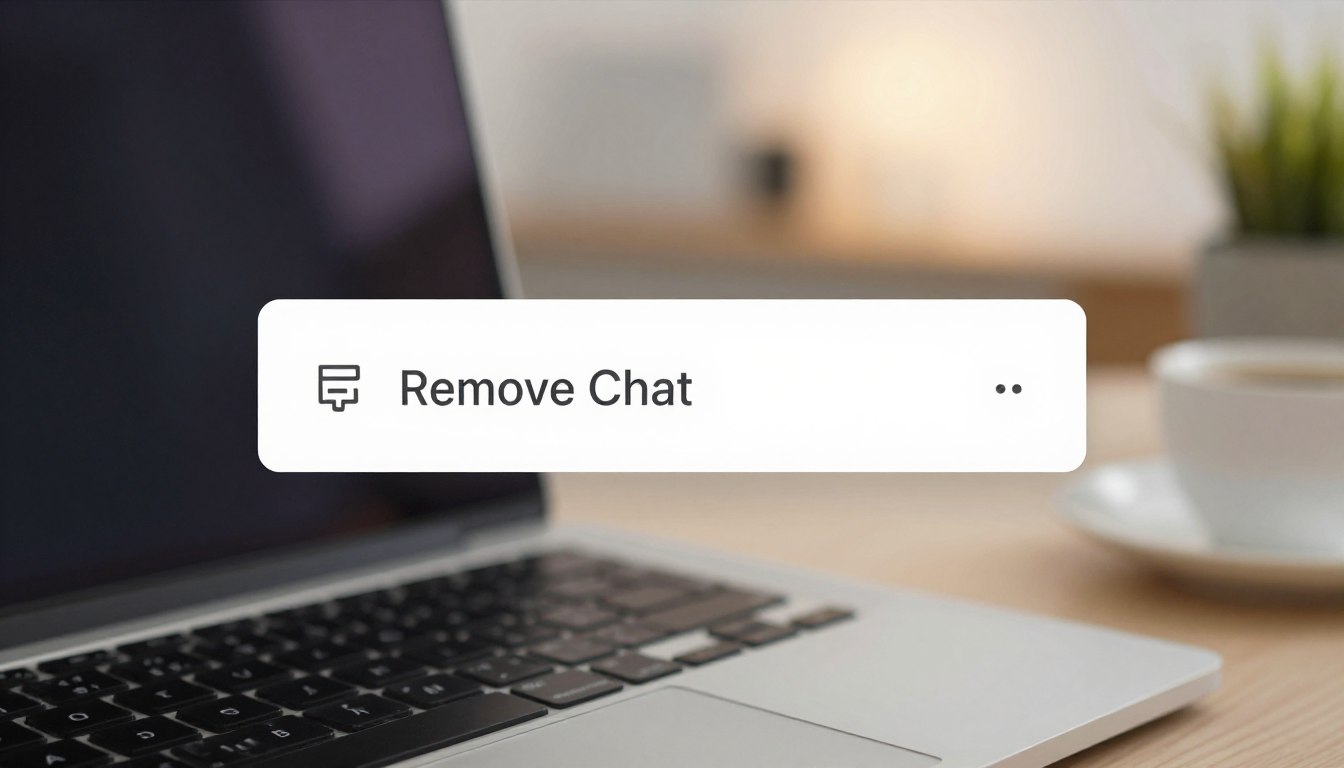
The desktop route applies to the conversation you open. “Remove Chat” removes that chat from the chat list. It is not the same as choosing a message-level action on a phone.
Remove a chat on desktop
Open the conversation you intend to remove, then use its three-dot menu. The menu contains the chat-level control. Follow these steps:
- Open the intended conversation.
- Select the three-dot menu.
- Choose “Remove Chat.”
The selected conversation is the one affected by the menu action. If you have several similar chats, use the conversation title and visible messages to distinguish the intended one before selecting the option.
Remove a chat or message on mobile
On mobile, a long-press opens the action for the item under your finger. A chat and an individual message have different removal options, so the selected item determines what the control changes.
- Long-press the chat, then select “Delete.”
- Long-press an individual message, then select “Remove.”
The mobile chat action targets a conversation; the message action targets one message inside it. Those controls do not perform the same change, even though both begin with a long-press.
If a confirmation appears, read the item named in it before proceeding. Check the selected conversation or message before confirming the removal.
How to Report a Character or User Correctly
Start by deciding whether the concern is the character itself or the account behind a profile. Character reports and user reports flag different targets, so select the route that matches what you believe violates the Terms. Choose the target first, then give a reason tied to that target.
Each reporting form asks you to choose a reason and allows you to add details. Make the reason and details about the same character or user you selected. That keeps the report focused instead of mixing concerns about separate accounts or content.
| Target | Screen and first control | Form details |
|---|---|---|
| Character, web | Character chat page, three-dot menu, flag | Choose reason and add details |
| Character, mobile | Character name, “View Character,” flag “Report” | Choose reason and add details |
| User | Profile, report button under username | Choose reason and add details |
On the web, open the Character chat page, select the three-dot menu, and choose the flag control. The character route starts from that chat page, so confirm that the displayed character is the one you intend to report.
On mobile, select the character name, choose “View Character,” then select the flag marked “Report.” To report a user, open that user’s profile and use the report button directly under the username. A character and its creator’s profile are not interchangeable targets.
After selecting a route, choose the reason that best describes the issue and add relevant details in the form. Avoid adding unrelated allegations, since they can make the main concern harder to understand. Read the displayed character name or username once more before submitting.
What Happens After You Submit a Report?
Submitting a report asks Character.AI to review a concern; it does not itself remove the content. Reports bring flagged content or conduct to the platform’s moderation process, which considers issues believed to violate the Terms. A request for review is different from an automatic takedown.
Character.AI’s Trust & Safety team works around the clock on flagged and reported content. Automated classifiers also help enforce content policies and filter sensitive model responses. Classifiers are a separate filtering tool, not the same process as a user-submitted report.
What moderation review means
A report calls attention to content or conduct that a user believes violates the Terms. It gives the platform a concern to review, while automated classifiers help apply content policies and filter sensitive responses. The two functions can both support moderation, but a classifier is not a personal report form.
Reports can concern a character, a message, or user conduct. The reported content may remain visible while it is being reviewed, and the act of reporting does not directly change your chat or account settings.
What a report does not guarantee
Submitting a report does not guarantee an immediate takedown, a particular enforcement decision, a timeline, or a personal update. A report is a request for review, so its submission alone cannot tell you whether the concern has been resolved.
- Reported content may not disappear immediately.
- No particular outcome is guaranteed.
- Submission alone does not confirm a resolution.
A visible character or message does not reveal what happened in the moderation process. Do not treat content remaining visible as proof that a review has reached a particular result.
Can Account Deletion or Data Export Remove a Report?
Exporting or deleting account data changes account-level access or data handling, not the status of a submitted report. As of October 2026, Character.AI users can export account data or delete an account through the app or website. Export and deletion are account controls, not report controls.
An export provides a copy of account data. Account deletion is permanent and cannot be reversed. Deleting the account is a broad account action, not a way to retract a report you submitted.
Export account data
Use the account controls in the app or on the website to export your data. Export gives you a copy of account data, which can be useful if you want to keep a record without closing the account. It does not edit or remove a report from the moderation process.
For an export, stay within the data-management controls and select the export option presented there. Account data export is separate from the option to remove an account, so read the control name before you continue.
Delete the account
The web and mobile paths use different labels. Follow the route for the device you are using:
- On web, go to Profile, Profile Settings, Account, Manage Account & Data, then Delete Account.
- On mobile, go to Profile, select the settings icon, then choose Remove Account.
Deleting the account is permanent and cannot be reversed. It changes your access to the account and its data, but it is not a dedicated way to cancel a previously submitted report. Stop at export if your goal is only to keep a copy of account data.
Do Privacy Controls Affect a Submitted Report?
Privacy controls change visibility or data-use choices, not a submitted report’s moderation status. Character visibility settings determine who can access a character, while the model-training opt-out controls whether personal data is processed for AI training and improvement. Those choices have separate purposes from reporting.
Character visibility offers Public, Unlisted, or Private choices. An Unlisted character remains accessible through a direct link. Private characters are available only to their creator, and Character.AI has no setting that makes an entire profile private.
Character visibility settings
Public characters are visible publicly. Unlisted characters are not listed publicly, but people with a direct link can still access them. Private characters are available only to the person who created them.
These options apply to characters, not an entire profile. If you change a character from Public to Unlisted, the direct-link access still matters. Character visibility settings do not change whether a report was submitted or what the report concerns.
Model-training opt-out
You can opt out at any time of having personal data processed to train and improve AI models. This is a data-use choice, distinct from changing who can see a character or from reporting content for review.
Use the setting for the specific choice you intend to make. Visibility and training choices are not report controls, so leave the report aside when changing a setting whose purpose is character visibility or model training.
What If You Reported the Wrong Character or User?
First work out whether the mistake was the item you flagged or the concern that prompted the report. A message, a character, and a user are distinct targets, and a mistaken target is not corrected by submitting another report as if it were an edit. Separate the target from the underlying concern before taking another action.
A report about a character is not the same as one about a user account or one message. Sending another report does not change the target of the earlier report. The website also has reporting options for improper content, but those options are not a route for correcting an already submitted report.
Use this checklist to pin down what you meant to flag:
- Identify whether the concern was about a message or an account.
- Check whether the character or username was the intended target.
- Decide whether the issue is actually about the conversation rather than the report.
Character.AI provides separate tools to flag messages and users. Choose a control based on the specific item involved, rather than treating the character name, profile, and conversation as one target.
A mistaken target is not corrected by sending another report as though it edited the first one.
If the concern is about improper content, the website has additional reporting options for that content. Those options address the content concern, not the status or target of a report you already submitted.
If no available control matches the change you want, pause before making a broader account change.
Conclusion
A report, its subject, and your account data are separate things to manage. Choose the control for the specific item you want to change, whether that is a message, a conversation, or an account setting.
Take one measured next step: identify the item first, then use the control that applies to it. Open the chat only if that is the item you want removed; otherwise check the relevant account setting before confirming a broader action.
FAQ
How to clear chats on c ai?
On desktop, open the conversation, select the three-dot menu, and choose “Remove Chat.” On mobile, long-press the chat and select “Delete.” These controls remove a conversation from your chat list, rather than changing a report or a single message. Check the conversation title before you confirm, especially if you have several chats with similar names.
Is Character.AI private?
Character.AI offers Public, Unlisted, and Private character visibility settings, but it has no setting to make an entire profile private. Unlisted characters remain accessible through a direct link, while Private characters are available only to their creator. Choose a character setting based on who should access that character, not as a way to change a report’s status.
Does C AI still have a filter?
Yes, Character.AI uses automated classifiers to help enforce content policies and filter sensitive model responses. Those classifiers are separate from user-submitted reports, which flag content or conduct for moderation review. A filter does not act as a personal report control, and submitting a report does not guarantee that content will be removed immediately.
Is Character AI safe to use?
Character.AI provides reporting and privacy controls, but those tools do not guarantee a particular outcome or make every interaction risk-free. You can report content or conduct you believe violates the Terms, and you can adjust character visibility or data-use choices. Those controls have different purposes, so use the one that matches your concern.
Can I report a message without reporting a character or user?
Yes, Character.AI provides separate tools to flag messages and users, so select the control that matches the target. A message report concerns that message, while a character or user report concerns a different item. Check what the form identifies before you submit, then give a reason and details that apply to that target.
If you want to dig further into what is mesh wifi technology whole-home cover, read our What Is Mesh WiFi Technology Whole-Home Cover guide.
If you want to dig further into how technology ruins relationships impact on, read our How Technology Ruins Relationships Impact on guide.
If you want to dig further into how technology engineering and science are re, read our How Technology Engineering and Science Are Re guide.